
How to Turn Off Roku TV’s Screen Reader and Prevent Accidental Activation
Roku TV’s screen reader feature, designed to assist visually impaired users, can sometimes be activated accidentally. This can lead to unexpected narration of on-screen text during regular use. Here’s why it happens and how to turn it off or disable the shortcut.

Editor, LazyFounders
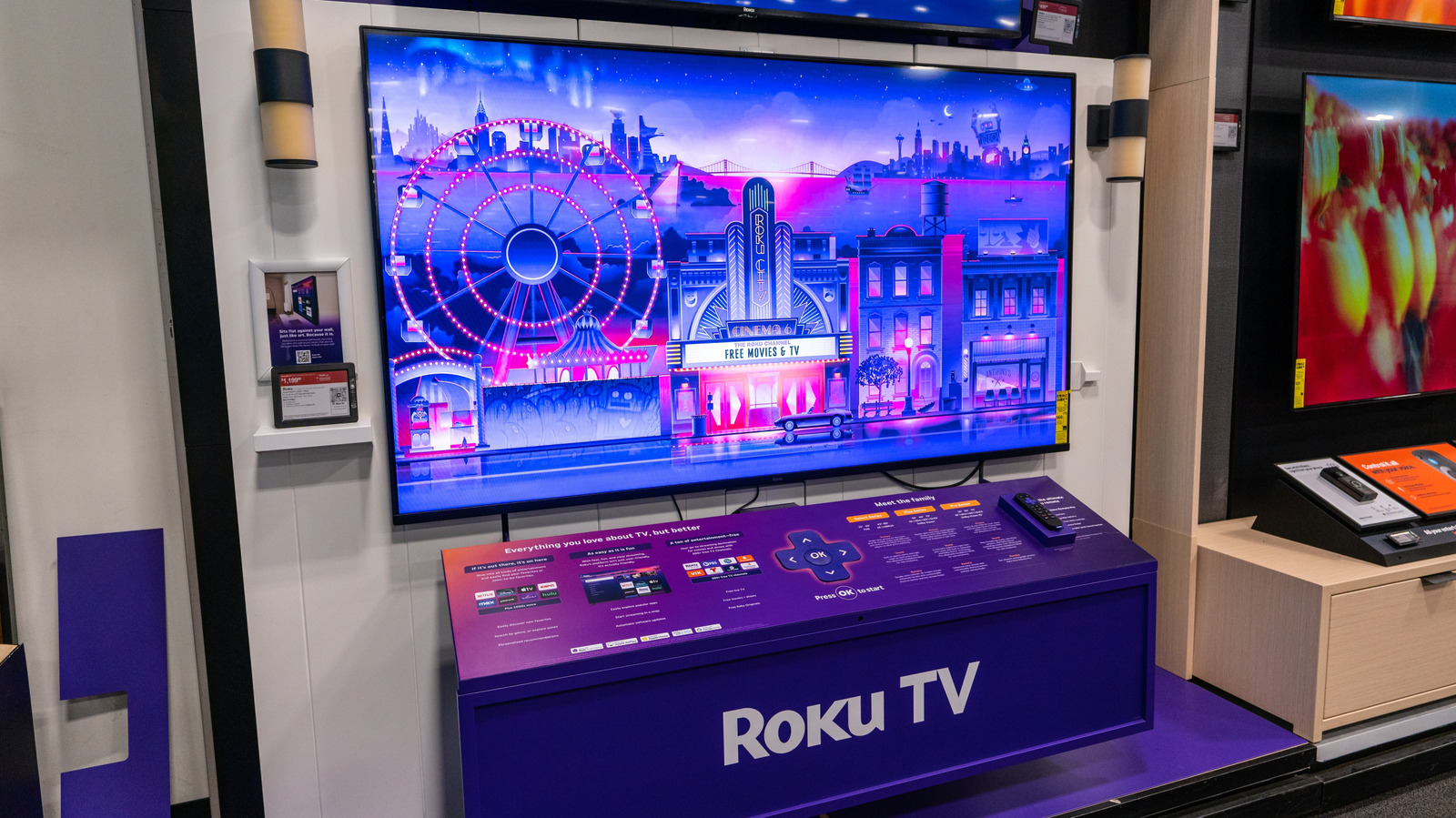

Roku TV’s screen reader feature, designed to assist visually impaired users, can sometimes be activated accidentally. This can lead to unexpected narration of on-screen text during regular use. Here’s why it happens and how to turn it off or disable the shortcut.
30 SEC SUMMARY
- Roku TV includes a screen reader accessibility feature that narrates on-screen text for visually impaired users.
- The feature can be accidentally activated by pressing the Options button four times in a row.
- Users can turn off the screen reader by pressing the Options button four times or via the Accessibility settings.
- The shortcut for the screen reader can be disabled in the Accessibility menu to prevent accidental activation.
TABLE OF CONTENTS
- What Is Roku TV’s Screen Reader?
- How the Screen Reader Gets Accidentally Activated
- How to Turn Off the Screen Reader
- What this means
- Key takeaways
- FAQ
- Sources
KEY HIGHLIGHTS
- Roku TV includes a screen reader for visually impaired users, which narrates on-screen text.
- The screen reader can be accidentally activated by pressing the Options button four times.
- Users can turn off the feature by pressing the Options button four times or via the Accessibility menu.
- The shortcut for the screen reader can be disabled in the Accessibility settings to prevent future accidents.
What Is Roku TV’s Screen Reader?
According to Engadget, Roku TV includes a screen reader accessibility feature designed to assist visually impaired users. The feature narrates on-screen text aloud, making it easier for users to navigate menus and content.
While the screen reader is a valuable tool for accessibility, it can be accidentally triggered, leading to unexpected narration during regular use.
How the Screen Reader Gets Accidentally Activated
The screen reader can be turned on by pressing the Options button on the Roku remote four times in rapid succession, according to Engadget. This shortcut is intended to provide quick access for users who rely on the feature.
However, the shortcut can be inadvertently triggered—for example, if the remote is pressed by objects like pets or gets wedged between couch cushions. This can result in the screen reader activating without the user’s intent.
How to Turn Off the Screen Reader
Engadget reports that users can quickly disable the screen reader by pressing the Options button four times again. This toggle provides an immediate way to stop the narration.
For a more permanent solution, users can navigate to the Accessibility menu in Roku TV’s settings. Under the Screen Reader section, the feature can be turned off entirely. Additionally, the shortcut can be disabled in this menu to prevent accidental activations in the future.
What this means
LazyFounders analysis — our interpretation, not reported fact.
For founders and operators in the consumer electronics space, this highlights the importance of balancing accessibility features with user experience. While screen readers are critical for visually impaired users, unintended activations can frustrate customers and lead to support queries. Roku’s approach—providing both a quick toggle and a permanent disable option—shows how thoughtful design can address diverse user needs without compromising usability. Startups building hardware or software with accessibility features should prioritize clear documentation and intuitive controls to minimize friction for all users.
Key takeaways
- Roku TV’s screen reader is an accessibility feature for visually impaired users.
- The feature can be accidentally triggered by pressing the Options button four times.
- Turning off the screen reader can be done quickly via the remote or through the Accessibility menu.
- Disabling the shortcut in settings prevents future accidental activations.
FAQ
Why is my Roku TV narrating everything on the screen?
Your Roku TV’s screen reader feature has likely been activated. This accessibility tool narrates on-screen text for visually impaired users but can be triggered accidentally by pressing the Options button four times.
How do I turn off the screen reader on my Roku TV?
You can turn off the screen reader by pressing the Options button on your Roku remote four times in a row. Alternatively, you can disable it permanently via the Accessibility menu in the settings.
Can I prevent the screen reader from being accidentally activated?
Yes. In the Accessibility menu, you can disable the shortcut for the screen reader, which prevents it from being triggered by pressing the Options button four times.
Related on LazyFounders
Sources
- Engadget · 2026-09-26
Is Your Roku TV Talking To You? Here's Why And How To Turn It Off
This story is an original summary drafted with AI by LazyFounders from the reporting listed above and checked by automated validation. Facts are attributed to their original publishers; sections marked as analysis are LazyFounders's. Where a source is in another language, facts were machine-translated and quotations are reported, not reproduced. Read the original coverage via the links, and see our AI policy and corrections policy.
About the author
Editor, LazyFounders
Tarun Mottlia edits LazyFounders, covering Indian startups, funding rounds, AI and product launches. Every story on the site is AI-assisted and checked against its cited sources before publication.
More stories by Tarun MottliaGet the LazyFounder Brief
Startup, funding and AI news in a five-minute read. Join the early-access list.