
How to Factory Reset Google Home Mini and Nest Devices—And What Happens After
Google’s Home Mini and Nest Mini smart speakers, along with Nest Hub displays, can be reset to factory settings—but the process requires physical interaction, not voice commands or app controls. A reset erases all personal data, forcing users to set up the device again from scratch. Google has discontinued these models but continues to support them with updates and customer service.

Editor, LazyFounders
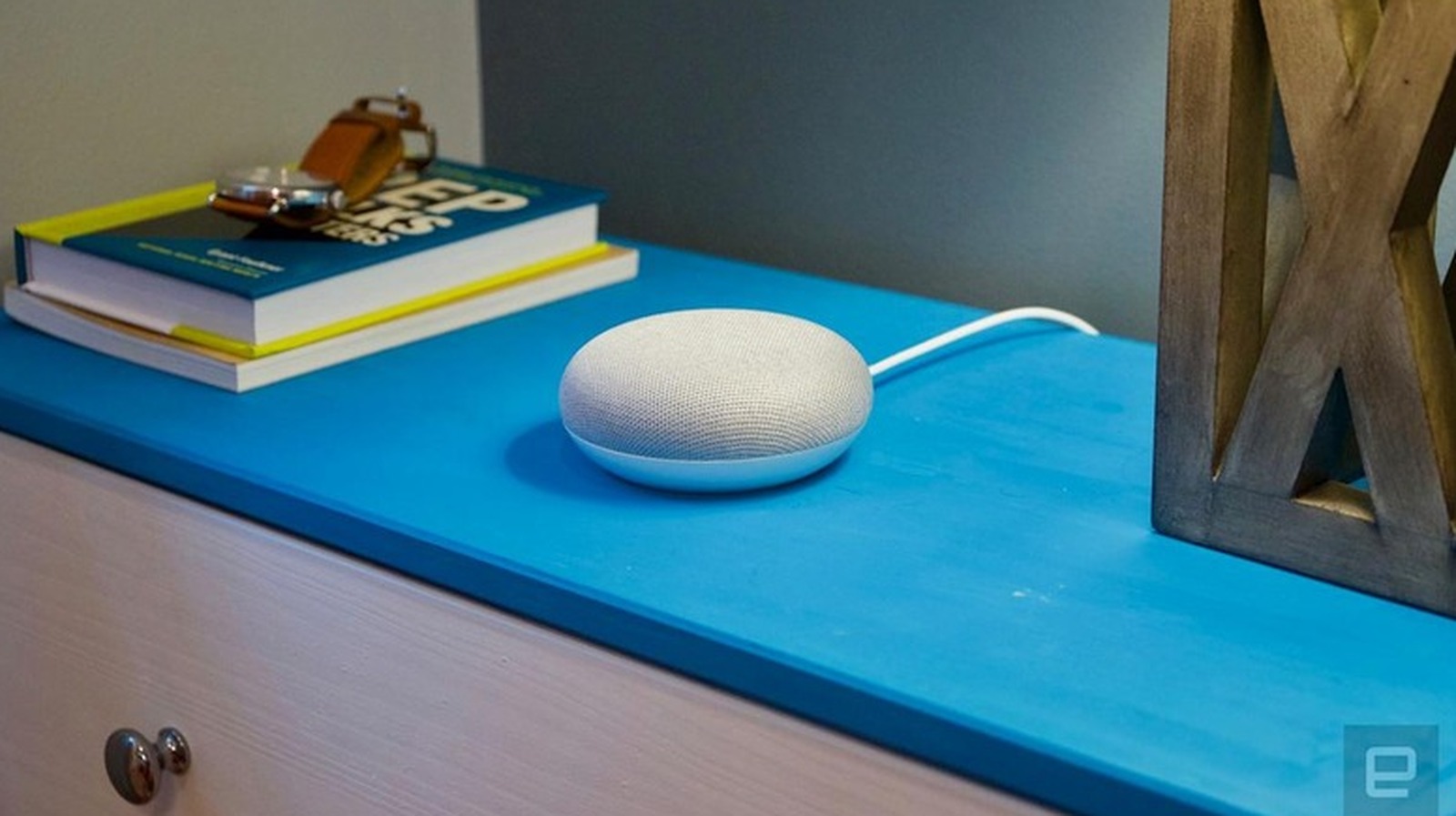

Google’s Home Mini and Nest Mini smart speakers, along with Nest Hub displays, can be reset to factory settings—but the process requires physical interaction, not voice commands or app controls. A reset erases all personal data, forcing users to set up the device again from scratch. Google has discontinued these models but continues to support them with updates and customer service.
30 SEC SUMMARY
- Google Home Mini and Nest Mini require physical button presses to factory reset, not voice commands or the Google Home app.
- A factory reset erases all personal data, Wi-Fi credentials, and linked accounts from the device permanently.
- Google has discontinued the Home Mini but continues supporting it with software updates and customer care.
- Resetting varies by model: 15 seconds for Home Mini (1st gen) or Nest Mini (2nd gen), 10 seconds for Nest Hub displays.
- After a reset, devices must be set up again as new, with no option to undo the process.
TABLE OF CONTENTS
- How to Reset Google Home Mini and Nest Devices
- What Happens After a Reset
- Google’s Support for Discontinued Models
- What this means
- Key takeaways
- FAQ
- Sources
KEY HIGHLIGHTS
- Google Home Mini and Nest Mini require physical buttons to factory reset, not voice commands or the Google Home app.
- A factory reset permanently erases personal data, Wi-Fi credentials, and linked accounts.
- Google has discontinued the Home Mini but continues to provide software updates and customer support.
- Resetting methods differ by model: 15 seconds for Home Mini (1st gen), turning off the mic and holding the Nest Mini (2nd gen), or 10 seconds for Nest Hub displays.
- After a reset, devices must be set up again as new, with no option to recover lost data.
How to Reset Google Home Mini and Nest Devices
According to Engadget, factory resetting a Google Home Mini or Nest Mini requires using physical buttons on the device. Voice commands or the Google Home app cannot initiate the process.
For the first-generation Google Home Mini, users must press and hold the reset button on the bottom of the device for about 15 seconds. A chime confirms the reset is complete.
The Google Nest Mini (2nd gen) requires a slightly different approach. Users must first turn off the microphone using the physical switch on the side, then press and hold the center of the device for about 15 seconds until a chime sounds.
For Nest Hub displays, resetting involves pressing and holding both volume buttons on the back of the device for roughly 10 seconds.
Engadget notes that the reset process takes only a few minutes and doesn’t require technical expertise or special tools.
What Happens After a Reset
A factory reset wipes all personal data from the device, including Wi-Fi credentials, linked Google accounts, and household connections. Engadget emphasizes that this process is irreversible—users cannot recover data after a reset.
Once reset, the device disconnects from all household members and returns to its original factory state. Users must set it up again as if it were new, including reconnecting to Wi-Fi and relinking accounts.
Engadget also suggests trying a simple reboot before resorting to a factory reset. Rebooting can resolve minor glitches without erasing data.
Google’s Support for Discontinued Models
Engadget reports that Google has discontinued the Google Home Mini, which launched almost nine years ago. The company confirmed to Engadget that it is no longer manufacturing new units for the Nest Home Mini or Nest Audio.
Despite discontinuing these models, Google will continue supporting them with regular software updates, security patches, and customer care. This ensures users can still rely on their devices for the foreseeable future.
What this means
LazyFounders analysis — our interpretation, not reported fact.
For founders and operators in the smart home space, this serves as a reminder of how critical user-friendly troubleshooting is for hardware products. Even a simple process like resetting a device can frustrate users if it’s not intuitive or well-documented.
Google’s decision to continue supporting discontinued models—like the Home Mini—also highlights the importance of long-term customer trust. Startups launching hardware should plan for lifecycle support early, including software updates and clear communication about product longevity. If users feel abandoned, it can damage brand reputation and hinder future adoption.
Finally, the reliance on physical buttons for resets underscores the limitations of app-only controls. Hardware design must account for edge cases, like app failures or connectivity issues, to ensure users can always recover their devices.
Key takeaways
- Factory resetting Google’s smart speakers and displays requires physical interaction, not app or voice commands.
- A reset wipes all personal data, Wi-Fi credentials, and linked accounts permanently.
- Google continues to support discontinued models like the Home Mini with software updates and customer service.
- Resetting methods vary by device: 1st-gen Home Mini uses a reset button, while Nest Mini requires holding the device’s center after disabling the microphone.
- Rebooting a device can resolve minor issues without data loss, but a factory reset is irreversible.
FAQ
How do I factory reset a Google Home Mini (1st gen)?
Press and hold the reset button on the bottom of the device for about 15 seconds until a chime confirms the reset.
Can I reset a Google Nest Mini using the Google Home app?
No. The Google Nest Mini (2nd gen) requires turning off the microphone and holding the center of the device for about 15 seconds to reset.
What happens to my data after a factory reset?
A factory reset permanently erases all personal data, Wi-Fi credentials, linked accounts, and household connections. The device must be set up again as new.
Will Google stop supporting my discontinued Home Mini?
No. Google confirmed it will continue providing software updates, security patches, and customer care for discontinued models like the Home Mini and Nest Audio.
Is there a way to undo a factory reset?
No. A factory reset is irreversible. All data is permanently erased, and the device must be reconfigured.
Related on LazyFounders
Sources
- Engadget · 2026-09-26
How To Factory Reset Your Google Home Mini
This story is an original summary drafted with AI by LazyFounders from the reporting listed above and checked by automated validation. Facts are attributed to their original publishers; sections marked as analysis are LazyFounders's. Where a source is in another language, facts were machine-translated and quotations are reported, not reproduced. Read the original coverage via the links, and see our AI policy and corrections policy.
About the author
Editor, LazyFounders
Tarun Mottlia edits LazyFounders, covering Indian startups, funding rounds, AI and product launches. Every story on the site is AI-assisted and checked against its cited sources before publication.
More stories by Tarun MottliaGet the LazyFounder Brief
Startup, funding and AI news in a five-minute read. Join the early-access list.