
Why Windows 11 uses so much RAM—and what it means for users
Windows 11 often shows high RAM usage, but this is by design, not a flaw. The operating system uses modern memory management techniques like SysMain to preload apps and files, improving performance. For founders and operators, understanding when this behavior is normal—and when it signals a problem—is key to optimizing user experience.

Editor, Lazyfounder
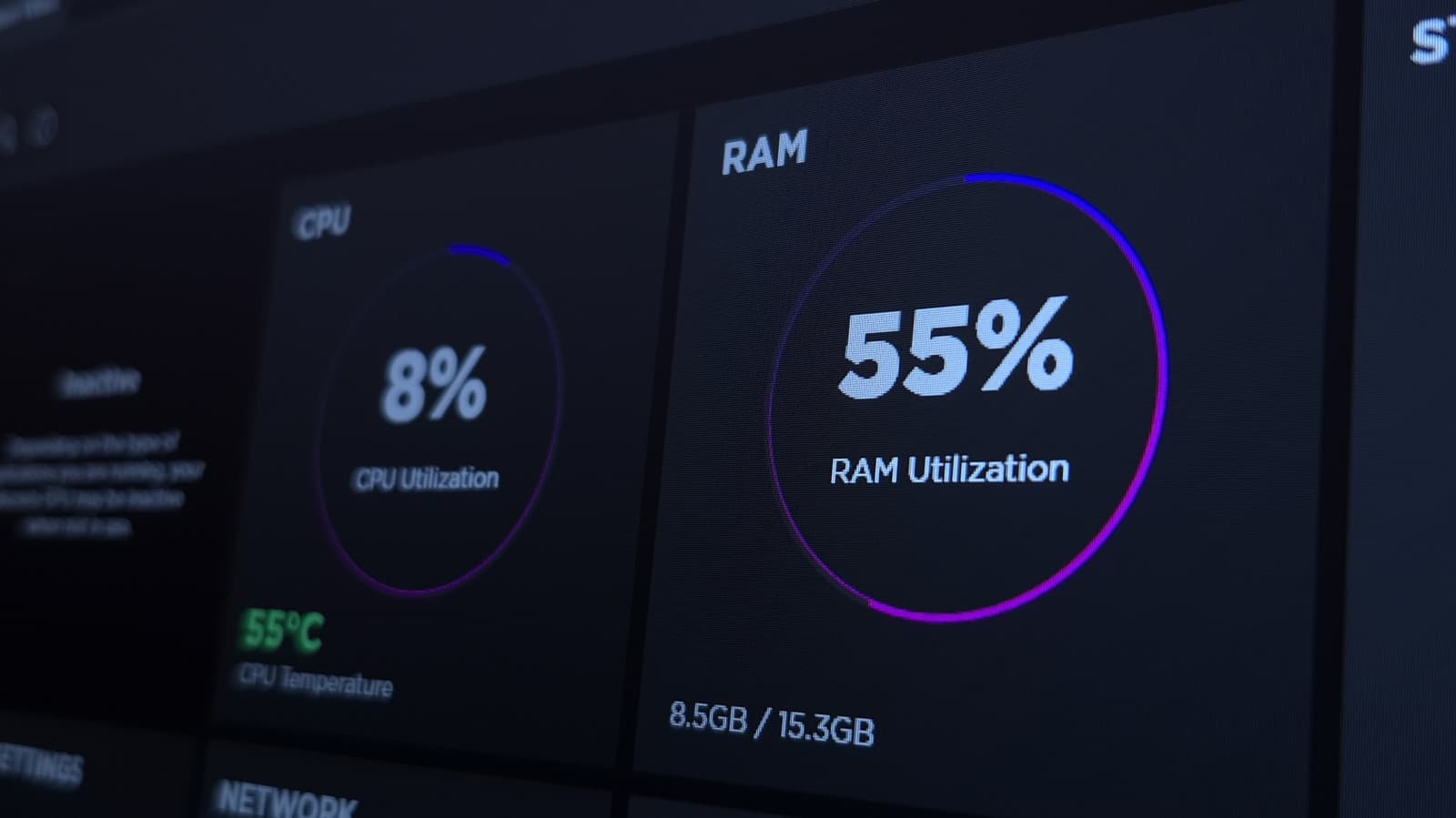
Windows 11 often shows high RAM usage, but this is by design, not a flaw. The operating system uses modern memory management techniques like SysMain to preload apps and files, improving performance. For founders and operators, understanding when this behavior is normal—and when it signals a problem—is key to optimizing user experience.
30 SEC SUMMARY
- Windows 11 often shows high RAM usage due to its modern memory management system, SysMain.
- High RAM usage is not a problem unless it causes performance issues like slowdowns or crashes.
- SysMain preloads frequently used apps and files into RAM to improve speed and responsiveness.
- Cached data in RAM is considered available and can be reclaimed instantly by Windows.
- Disabling SysMain or upgrading RAM may help older systems with limited resources.
TABLE OF CONTENTS
- Why Windows 11 uses more RAM
- When high RAM usage becomes a concern
- What users and operators can do
- How RAM management works in Windows 11
- What this means
- Key takeaways
- FAQ
- Sources
KEY HIGHLIGHTS
- Windows 11 prioritizes RAM usage over conservation to improve performance and responsiveness.
- SysMain preloads frequently used apps and files into RAM based on user habits.
- High RAM usage is not inherently problematic unless it causes slowdowns or crashes.
- Disabling SysMain is only recommended for older PCs with mechanical hard drives and limited RAM.
- Upgrading to 16GB or more of RAM is suggested for systems with 8GB or less.
Why Windows 11 uses more RAM
According to Engadget, Windows 11’s high RAM usage is intentional and stems from its modern memory management approach. Unlike older systems that aimed to conserve RAM, Windows 11 treats it as a resource to be used aggressively. This strategy ensures that frequently accessed apps and files are preloaded into memory, reducing load times and improving responsiveness.
At the core of this behavior is SysMain, formerly known as SuperFetch. SysMain analyzes a user’s habits—such as which apps and files are opened most often—and caches them in RAM. While this increases RAM usage, it also makes the system feel faster, especially during multitasking or launching applications.
When high RAM usage becomes a concern
Engadget points out that while Windows 11’s memory management is efficient, high RAM usage can still cause issues in specific scenarios. For example, if a system experiences slow performance, app crashes, or alerts about low memory, it may indicate a problem. Memory leaks—where applications fail to release RAM after use—can also lead to excessive and unnecessary RAM consumption over time.
Another contributing factor is unnecessary startup applications. These programs can consume RAM before the user even begins their work, leaving less available for active tasks. In such cases, cleaning up startup programs or investigating software bugs may help alleviate issues.
What users and operators can do
Engadget advises against relying on third-party memory cleaner apps, which often promise to free up RAM but can degrade performance. These tools may clear cached data that Windows relies on to speed up access to apps and files, leading to slower load times rather than improvements.
For users with older PCs—particularly those with mechanical hard drives and 8GB or less of RAM—disabling SysMain might improve performance. However, this is not a universal solution, and most modern systems benefit from keeping the feature enabled.
For systems struggling with 8GB or less of RAM, upgrading to 16GB or more is the most reliable long-term solution. Additional RAM allows Windows 11 to continue preloading data without running into shortages, even during demanding tasks.
How RAM management works in Windows 11
RAM (Random Access Memory) is a type of temporary storage that allows a computer’s processor to access data much faster than from a hard drive or SSD. By caching frequently used apps and files in RAM, Windows 11 reduces the time needed to open them, creating a smoother and more efficient user experience.
Task Manager in Windows 11 displays RAM usage in two key categories: "in use" and "available." The "available" figure includes cached data, which Windows can reclaim instantly if an active app or process requires more memory. This is why high RAM usage alone is not necessarily a cause for concern.
What this means
Lazyfounder analysis — our interpretation, not reported fact.
For founders and operators, Windows 11’s RAM usage highlights a key principle: raw resource consumption isn’t always a sign of inefficiency. The operating system is designed to prioritize performance by using available RAM to preload data, which can make systems feel faster and more responsive.
However, this approach also means that founders building software or hardware must consider how their products interact with modern memory management. If your tool or service targets power users, ensure it doesn’t conflict with features like SysMain or misinterpret high RAM usage as a problem. For startups focused on older hardware or resource-constrained environments, offering clear guidance—like when to disable SysMain or upgrade RAM—can improve user experience and reduce support overhead.
Ultimately, this is a reminder that optimization isn’t about minimizing resource usage but maximizing efficiency. Windows 11’s behavior reflects this shift, and founders should design their products accordingly.
Key takeaways
- Windows 11 uses high RAM percentages to preload apps and files, improving speed and responsiveness.
- SysMain (formerly SuperFetch) learns usage patterns to optimize memory allocation.
- High RAM usage alone is not a problem unless it leads to performance issues or crashes.
- Third-party memory cleaners are generally ineffective and may worsen performance.
- Disabling SysMain is only recommended for older PCs with mechanical hard drives and limited RAM.
FAQ
Is high RAM usage in Windows 11 a problem?
Not by default. Windows 11 uses RAM to preload apps and files, which improves performance. It only becomes a problem if it leads to slowdowns, crashes, or memory shortages.
What is SysMain, and how does it affect RAM usage?
SysMain is a Windows feature that learns your usage patterns and preloads frequently used apps and files into RAM. This increases RAM usage but speeds up access to those programs.
Should I disable SysMain to reduce RAM usage?
Only if you’re using an older PC with a mechanical hard drive and limited RAM. For most modern systems, disabling SysMain could reduce performance by preventing Windows from preloading important data.
Are third-party RAM cleaner apps effective?
No. These apps often clear cached data that Windows uses to speed up your system, which can lead to slower performance rather than improvements.
How much RAM do I need for Windows 11?
While Windows 11 can run on 4GB of RAM, 8GB is the minimum for smooth performance. For systems with 8GB or less, upgrading to 16GB or more is recommended to avoid memory shortages during demanding tasks.
Related on Lazyfounder
Sources
- Engadget · 2026-10-03
Why Windows 11 Is Always Using So Much RAM
This story is an original summary drafted with AI by Lazyfounder from the reporting listed above and checked by automated validation. Facts are attributed to their original publishers; sections marked as analysis are Lazyfounder's. Where a source is in another language, facts were machine-translated and quotations are reported, not reproduced. Read the original coverage via the links, and see our AI policy and corrections policy.

About the author
Editor, Lazyfounder
Tarun Mottlia edits LazyFounders, covering Indian startups, funding rounds, AI and product launches. Every story on the site is AI-assisted and checked against its cited sources before publication.
More stories by Tarun MottliaGet the LazyFounder Brief
Startup, funding and AI news in a five-minute read. Join the early-access list.