
How to Customize the Camera Control Button on iPhone 16, 17, and 18
Apple’s iPhone 16, 17, and 18 series introduce a customizable Camera Control button, offering users new ways to streamline photography, video recording, and app interactions. Here’s how to tailor it to your workflow—whether you’re a casual user or a creator.

Editor, Lazyfounder
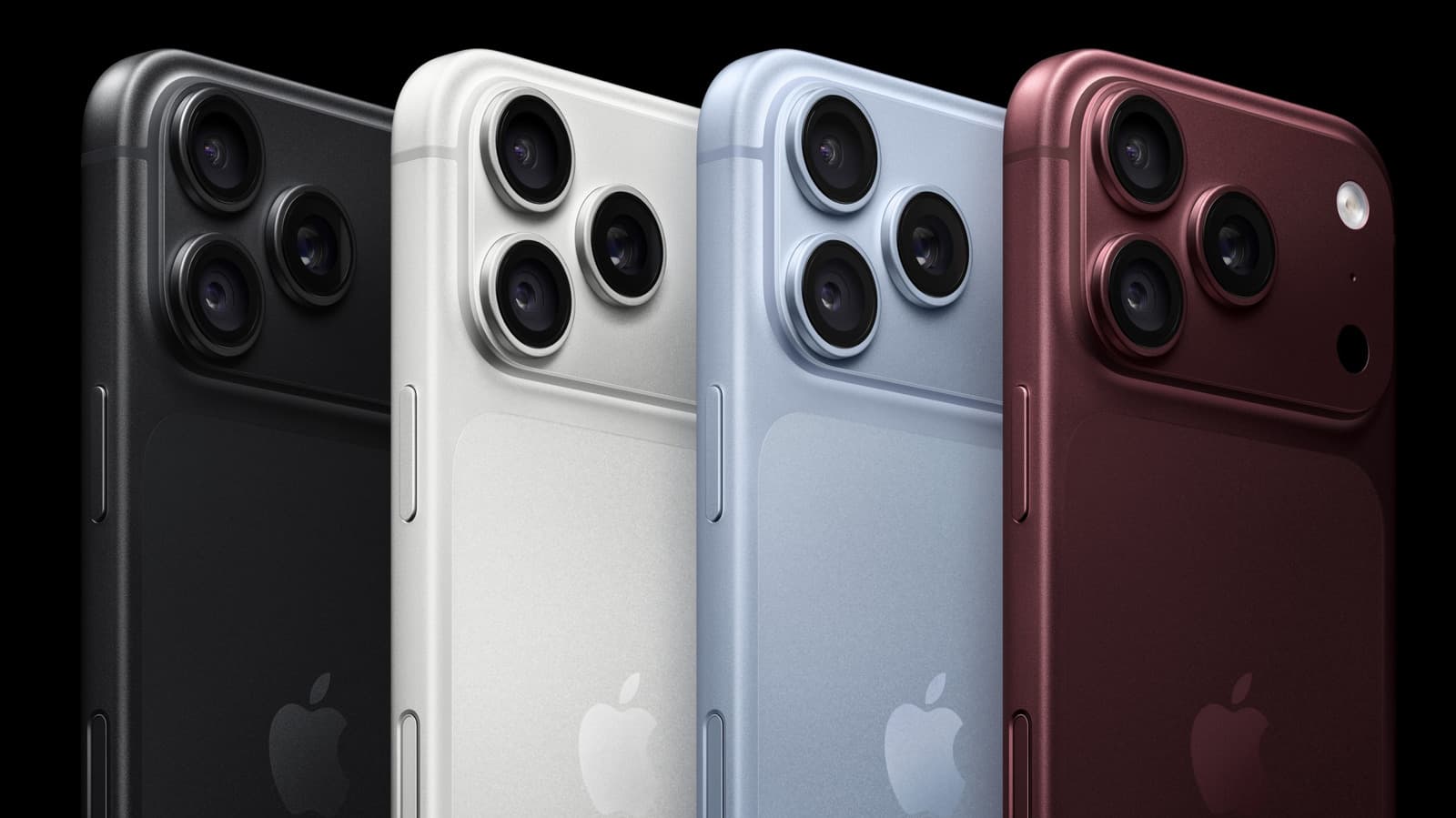
Apple’s iPhone 16, 17, and 18 series introduce a customizable Camera Control button, offering users new ways to streamline photography, video recording, and app interactions. Here’s how to tailor it to your workflow—whether you’re a casual user or a creator.
30 SEC SUMMARY
- Apple’s iPhone 16, 17, and 18 series feature a customizable Camera Control button for photography and video workflows.
- Users can tailor gestures like single-click, swipe, long-press, and double-click for functions like zoom, exposure, or launching apps like Instagram.
- Customization options are available in Settings > Camera > Camera Control, including adjustments for focus, force, and speed.
- Camera Control can be disabled entirely in Accessibility settings if unwanted.
TABLE OF CONTENTS
- What Is Camera Control?
- Default Gestures and Functions
- Customization Options
- Disabling Camera Control
- What this means
- Key takeaways
- FAQ
- Sources
KEY HIGHLIGHTS
- The Camera Control button on iPhone 16, 17, and 18 series supports gestures like single-click, swipe, long-press, and double-click for different functions.
- Users can customize the button in Settings > Camera > Camera Control, including which apps it launches and which camera adjustments it controls.
- Additional settings allow users to tweak force, speed, and accessibility preferences, or disable the button entirely.
What Is Camera Control?
According to Engadget, Camera Control is a capacitive button on the right side of the iPhone 16, 17, and 18 series. It responds to a range of gestures, including single-click, double-click, swipe, and long-press, allowing users to tailor its behavior for photography, video recording, and other tasks.
Default Gestures and Functions
Engadget reports that the button’s default behaviors are as follows:
A single click launches the Camera app. Swiping left or right while in the app adjusts tools like exposure or zoom. A long-press starts video recording, and a double-click opens Visual Intelligence, which lets users ask Siri questions about their surroundings using the camera.
Customization Options
Users can customize the Camera Control button by navigating to Settings > Camera > Camera Control. According to Engadget, this menu includes options to change what happens when the button is single-clicked or double-clicked, as well as how it interacts with camera adjustments like zoom, exposure, depth, and tone.
Under the "Launch Camera" setting, users can set the button to open third-party apps like Instagram, Code Scanner, or Magnifier instead of the default Camera app.
Engadget also notes that enabling "Lock Focus and Exposure" keeps these settings fixed as long as the user continues touching the button. For users with accessibility needs, the force and speed required to activate the button can be adjusted to Default, Slow, or Slower in Settings > Accessibility > Camera Control.
Disabling Camera Control
Engadget reports that users who do not find the Camera Control button useful can disable it entirely in Settings > Accessibility > Camera Control.
What this means
Lazyfounder analysis — our interpretation, not reported fact.
This update reflects Apple’s focus on refining user experience for creators and everyday users alike. By making the Camera Control button customizable, Apple is giving photographers, videographers, and social media users more control over their workflows without needing to rely on third-party apps or accessories. This could be particularly useful for solo creators or professionals who need quick access to tools while shooting. However, the real test will be how intuitive these gestures feel in practice—over-customization can sometimes lead to confusion rather than efficiency. For startups and developers in the mobile photography space, this move also signals Apple’s commitment to embedding more advanced capabilities directly into its hardware, which could influence how third-party apps integrate with iOS in the future.
Key takeaways
- Camera Control is a new capacitive button on the iPhone 16, 17, and 18 series, designed to streamline photography and video tasks.
- Default gestures include single-click to open the Camera, swipe for tools like zoom or exposure, long-press for video, and double-click for Visual Intelligence.
- Users can customize the button’s behavior in Settings, including which apps it launches and how it adjusts camera settings.
- Accessibility features allow further tweaks to force and speed requirements for the button’s response.
FAQ
Which iPhone models have the Camera Control button?
According to reports, the Camera Control button is available on the iPhone 16, 17, and 18 series.
Can I disable the Camera Control button?
Yes. Users can turn off the Camera Control button entirely in Settings > Accessibility > Camera Control.
What apps can the Camera Control button launch?
The button can be set to launch apps like Instagram, Code Scanner, Magnifier, or the default Camera app, depending on customization settings.
How do I adjust the force required to use the Camera Control button?
Force and speed settings for the button can be adjusted in Settings > Accessibility > Camera Control, with options for Default, Slow, or Slower.
Related on Lazyfounder
Sources
- Engadget · 2026-10-03
How To Customize Camera Control On Your iPhone
This story is an original summary drafted with AI by Lazyfounder from the reporting listed above and checked by automated validation. Facts are attributed to their original publishers; sections marked as analysis are Lazyfounder's. Where a source is in another language, facts were machine-translated and quotations are reported, not reproduced. Read the original coverage via the links, and see our AI policy and corrections policy.

About the author
Editor, Lazyfounder
Tarun Mottlia edits LazyFounders, covering Indian startups, funding rounds, AI and product launches. Every story on the site is AI-assisted and checked against its cited sources before publication.
More stories by Tarun MottliaGet the LazyFounder Brief
Startup, funding and AI news in a five-minute read. Join the early-access list.